Introduction
Table of contents
YouTube Now Requires Referrer Policy for Embeds
Recently, YouTube introduced a new requirement for websites embedding their videos: the inclusion of a referrerpolicy attribute. This change ensures that YouTube can handle referrer information securely and consistently. If your website embeds YouTube videos and you haven’t updated your code, you might notice that the videos no longer display correctly.
If you do not include the referrer policy, your embed will NOT work and will return 153 video player error
In this article, we’ll explain the issue, show you the code changes required, and provide a step-by-step guide to implement the fix.
What Changed?
Previously, YouTube embeds worked without requiring a referrerpolicy attribute. However, YouTube now mandates that this attribute be explicitly set to ensure proper handling of referrer information. Without this update, embedded videos may fail to load or display a blank screen.
See the youtube policy change mentioned here
Before the Update
Here’s an example of how a YouTube embed might have looked before the update:
<iframe
  width="560"
  height="315"
  src="https://www.youtube.com/embed/VIDEO_ID"
  frameborder="0"
  allowfullscreen>
</iframe>
This code does not include the referrerpolicy attribute, which is now required.
After the Update To comply with YouTube’s new requirements, you need to add the referrerpolicy attribute to your <iframe> tag. Here’s the updated code:
<iframe
  width="560"
  height="315"
  src="https://www.youtube.com/embed/VIDEO_ID"
  frameborder="0"
  allowfullscreen
  referrerpolicy="strict-origin-when-cross-origin">
</iframe>
The referrerpolicy="strict-origin-when-cross-origin" attribute ensures that no referrer information is sent when the video is loaded. This is the recommended setting for most websites.
Step-by-Step Implementation
Follow these steps to update your website:
Locate Your YouTube Embeds
Search your website’s codebase for all instances of <iframe> tags embedding YouTube videos. You can use a text editor or IDE to search for youtube.com/embed.
If you don’t have the referrer policy, you will see that the video does not load in your website with 153 video player error. 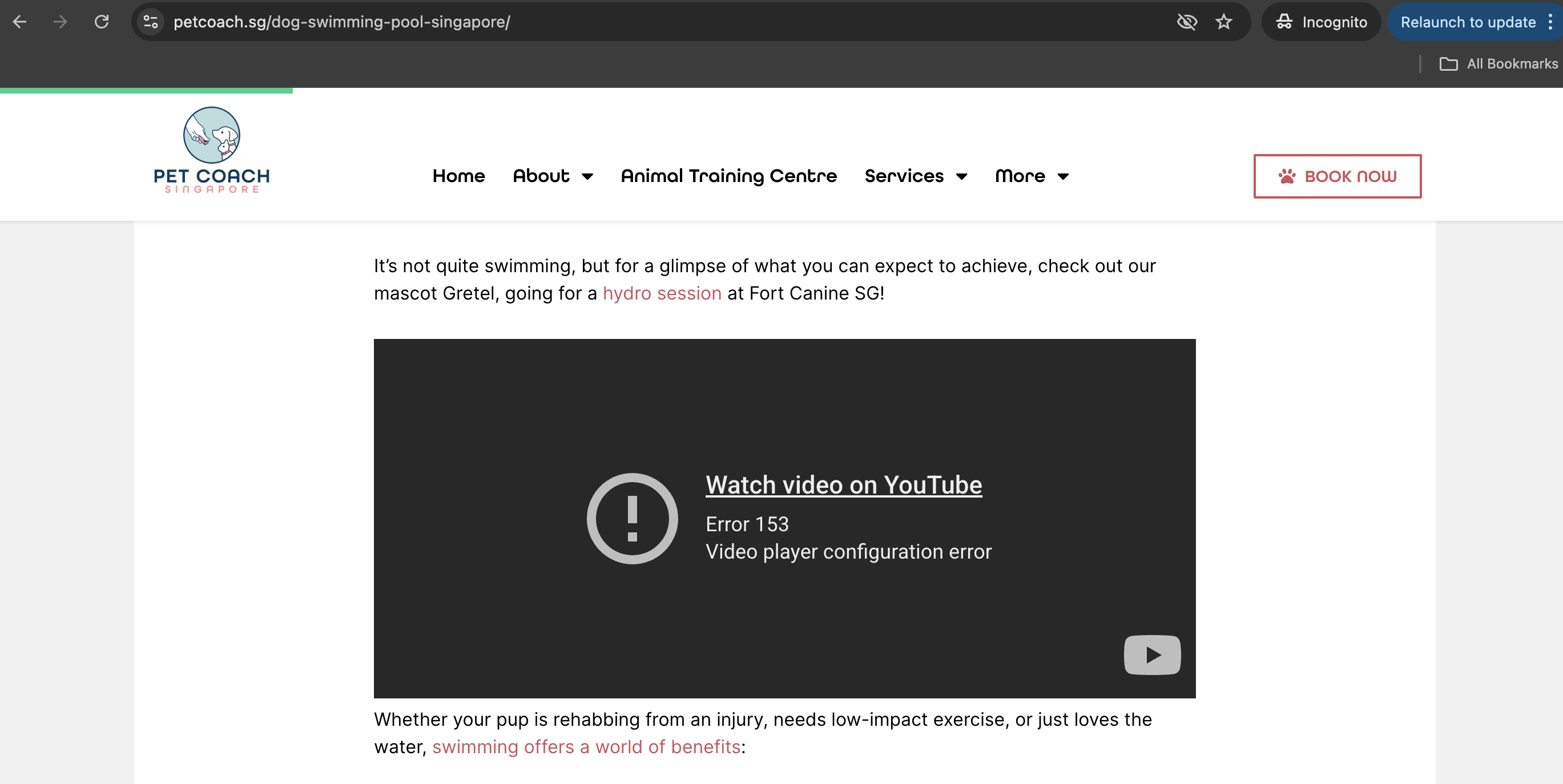
Verify Error Is Due to Referrer Policy
To confirm that the issue is caused by the referrer policy, follow these steps:
-
Inspect the YouTube Embed in the Browser
Open the page with the embedded YouTube video in your browser. If the video fails to load, right-click on the page and select Inspect (or pressCmd+Option+Ion Mac to open the Developer Tools). -
Locate the
<iframe>Element
In the Developer Tools, navigate to the Elements tab and find the<iframe>tag that embeds the YouTube video. You can search foryoutube.com/embedto locate it quickly. -
Check the Network Request
Switch to the Network tab in the Developer Tools. Reload the page to capture all network requests. Look for the request made by the<iframe>to YouTube. -
Inspect the Referrer Policy
Click on the network request for the YouTube embed. In the Headers section, look for theReferrer Policyheader. You will likely see it set tosame-origin, which means the referrer information is only sent for requests to the same origin as the website.
-
Compare with YouTube’s Requirements
YouTube expects thereferrerpolicyto be explicitly set tono-referrerororigin. If the policy issame-origin, YouTube will reject the request, causing the video to fail to load.
By following these steps, you can confirm that the error is due to the referrer policy mismatch. Once verified, proceed to update the <iframe> tag with the correct referrerpolicy attribute as described earlier.
Add the referrerpolicy Attribute
For each <iframe> tag embedding a YouTube video, add the referrerpolicy="strict-origin-when-cross-origin" attribute. Ensure the attribute is added within the <iframe> tag.
See an example of how we added ours below: 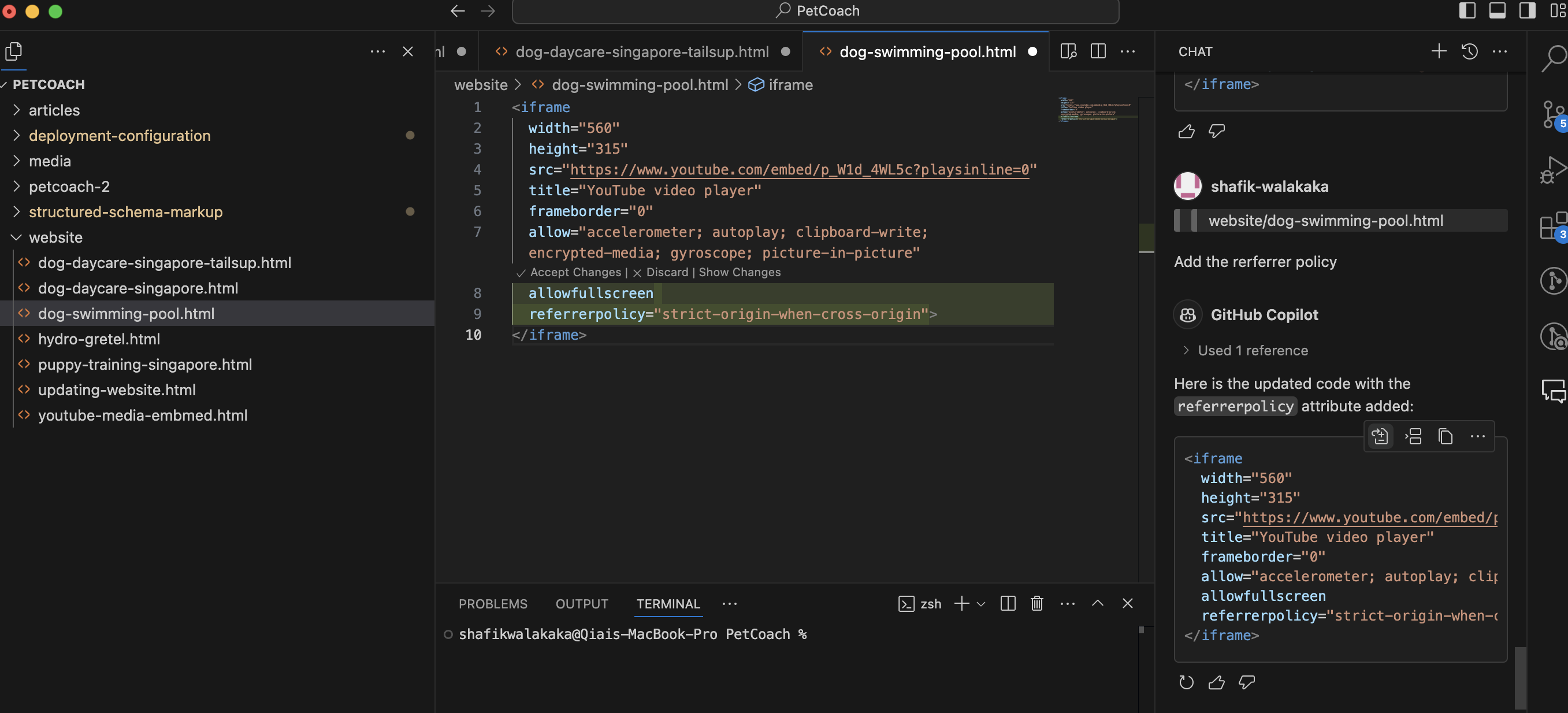
Test Your Changes
After updating the code, test your website to ensure the embedded videos load correctly. Open the pages with YouTube embeds in your browser and verify that the videos display as expected.
See here, how we verify that the referrer policy sent by the iframe is correct: 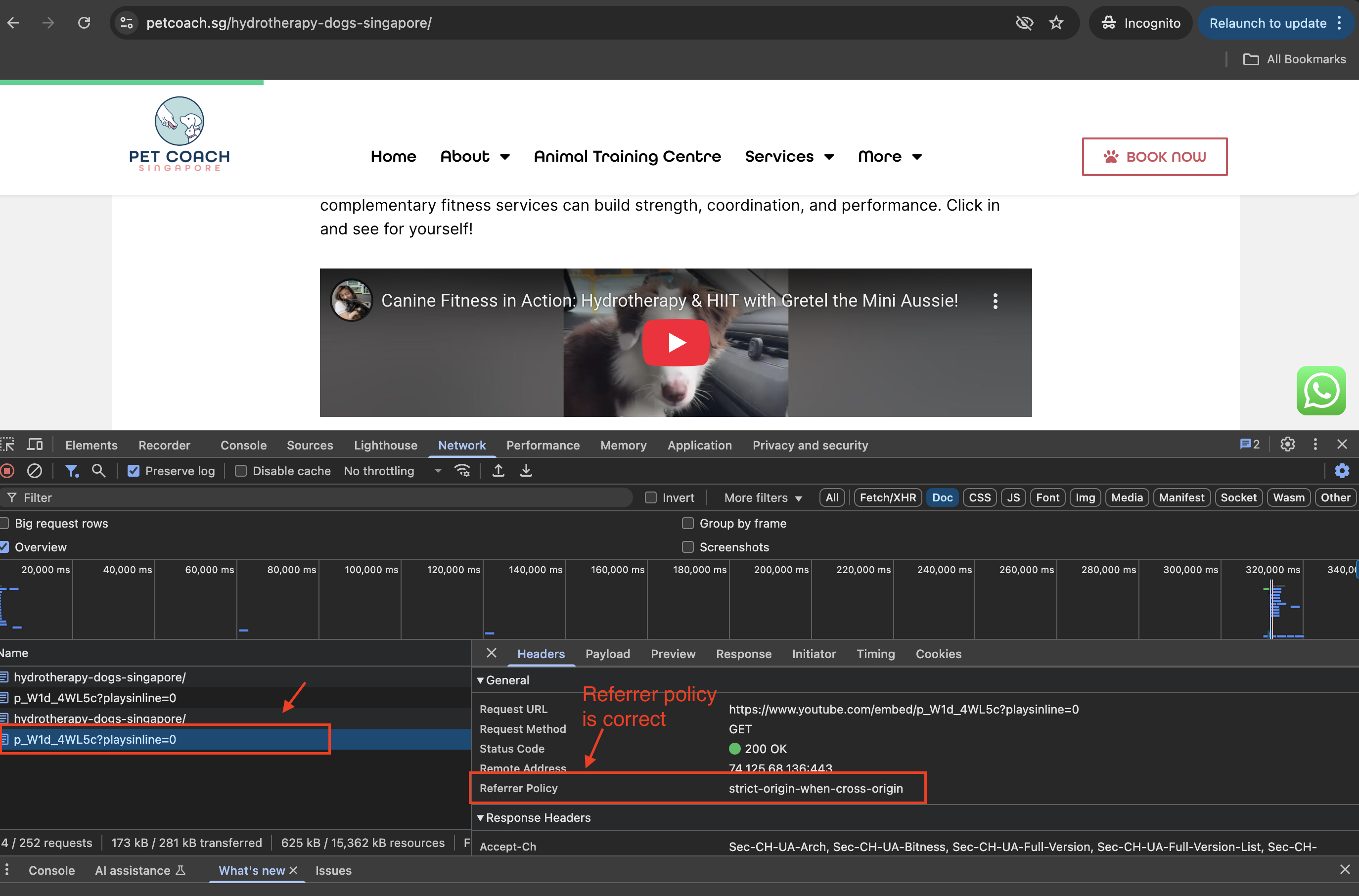
Update Templates (if applicable)
If your website uses templates (e.g., in WordPress, Jekyll, or other CMS platforms), ensure the referrerpolicy attribute is added to the template files generating the <iframe> tags.
Deploy Your Changes
Once you’ve verified that the videos work correctly, deploy the updated code to your live website.
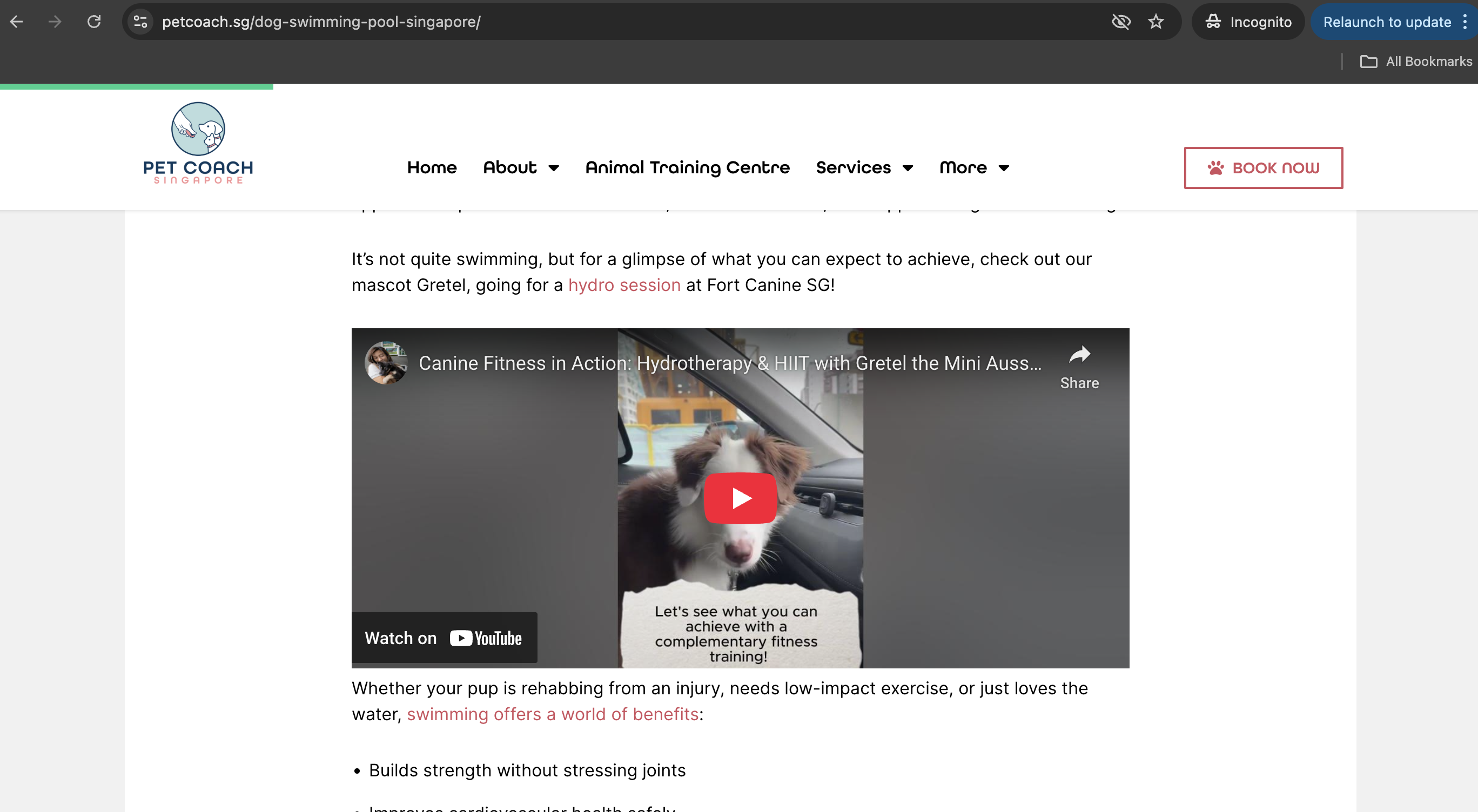
It’s that simple, see how the video now loads with no error.
Why Is This Important?
Adding the referrerpolicy attribute ensures that your website complies with YouTube’s updated requirements. This change improves security and ensures that your embedded videos continue to work seamlessly.
Conclusion
YouTube’s new requirement for the referrerpolicy attribute is a small but important update for websites embedding videos. By following the steps outlined above, you can ensure that your website remains compatible with YouTube’s embed functionality.
If you have any questions or run into issues, feel free to leave a comment below!