Automating Jekyll Blog Post Generation with Claude
Table of contents
- Automating Jekyll Blog Post Generation with Claude
I manage a Jekyll blog at blog.shafikwalakaka.com built on the Just the Docs theme. Writing posts is something I genuinely enjoy, but the mechanical side — setting up frontmatter, getting the folder structure right, remembering nav_order, formatting callouts correctly — takes time and gets repetitive fast.
So I went down a rabbit hole trying to automate it with Claude. What came out the other end wasn’t the first thing I tried — it was the fourth. This post documents what I built, what I tried before it, and why each earlier approach fell short. By the end, you’ll have a clear picture of the final workflow and the reasoning behind every decision.
The Goal
The ideal end state: I have a Claude conversation where I’ve troubleshot something interesting. I want to turn that conversation into a published Jekyll blog post with minimal manual effort. The post should:
- Follow my existing folder and file naming conventions
- Have correct frontmatter (including
nav_orderinferred from existing posts) - Match my writing style — casual, practical, first person
- Use proper Just the Docs formatting (callouts, code blocks, TOC)
- Include image placeholders so I know exactly what screenshots to take
What I Tried First — A Claude.ai Generator Artifact
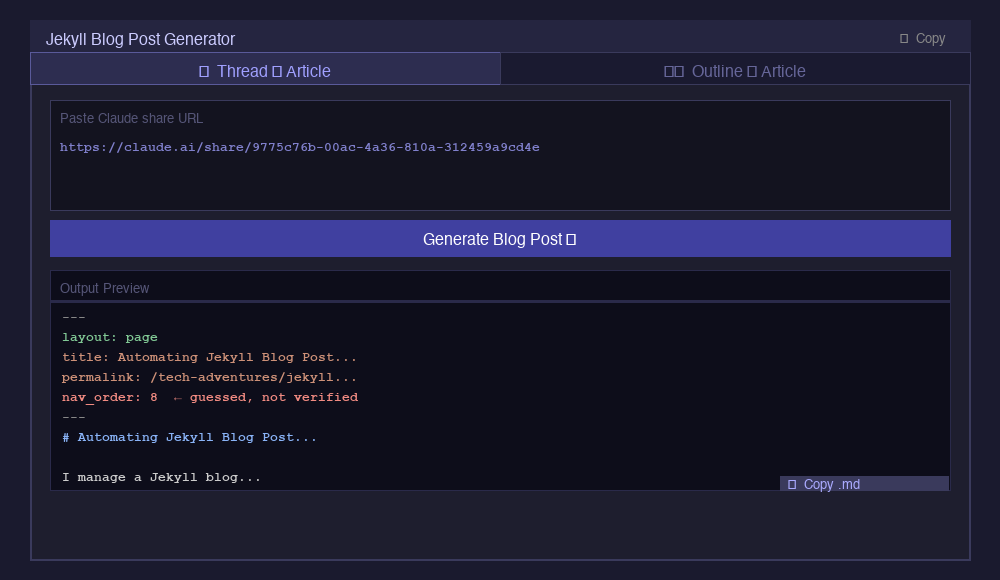
The first attempt was a browser-based HTML artifact built directly in Claude.ai. It had two modes:
- Thread → Article: paste a Claude share URL, it fetches the thread and writes the post
- Outline → Article: provide a title and bullet points, it writes the post
It looked slick and called the Anthropic API under the hood. The output was a ready-to-copy .md file.
Why it didn’t stick
It was a one-shot tool with no persistent memory of my blog structure. Every session started from scratch. More importantly, it produced a final article directly — which meant there was no room for Claude Code to do the filesystem checks (like reading actual nav_order values from my repo). The nav_order was always guessed, never verified.
It was useful as a proof of concept but not robust enough for a repeatable workflow.
What I Tried Next — A Claude.ai Project
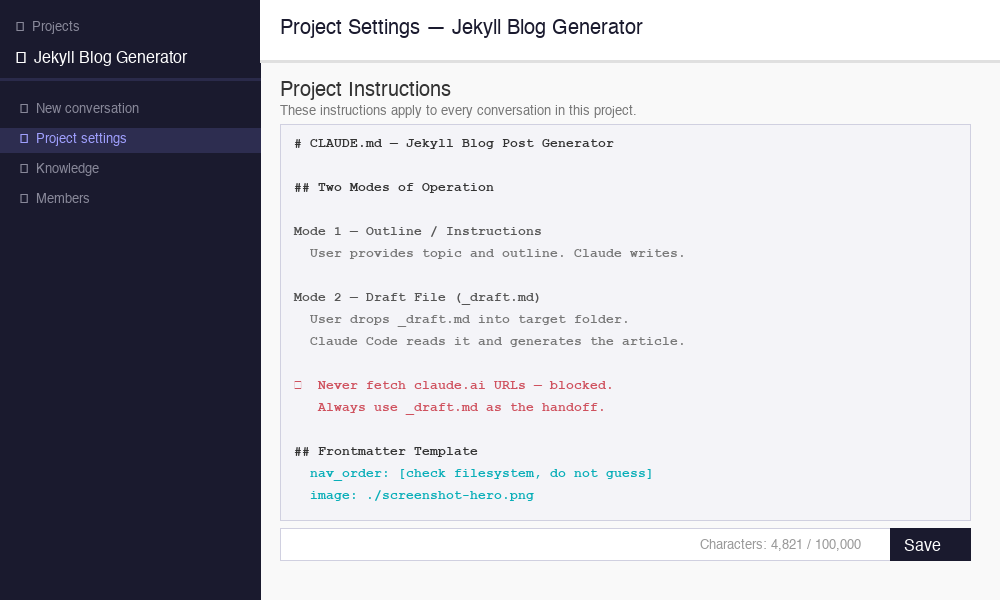
The natural next step was to move the instructions into a Claude Project — Claude.ai’s feature for persistent system prompts that apply to every conversation in that project.
The idea: paste my blog structure, writing style, frontmatter template, and folder conventions into the Project instructions once. Then every conversation in that project would already know the rules.
What worked
The Project instructions persisted correctly. Claude knew my blog structure, writing style, and formatting rules without me having to re-explain them.
What didn’t work — Thread URL fetching
The original plan was:
- Share a Claude conversation via URL
- Paste the URL into the Project
- Claude fetches the thread and writes the draft
Tested it. Failed immediately:
Failed to fetch: https://claude.ai/share/9775c76b-00ac-4a36-810a-312459a9cd4e
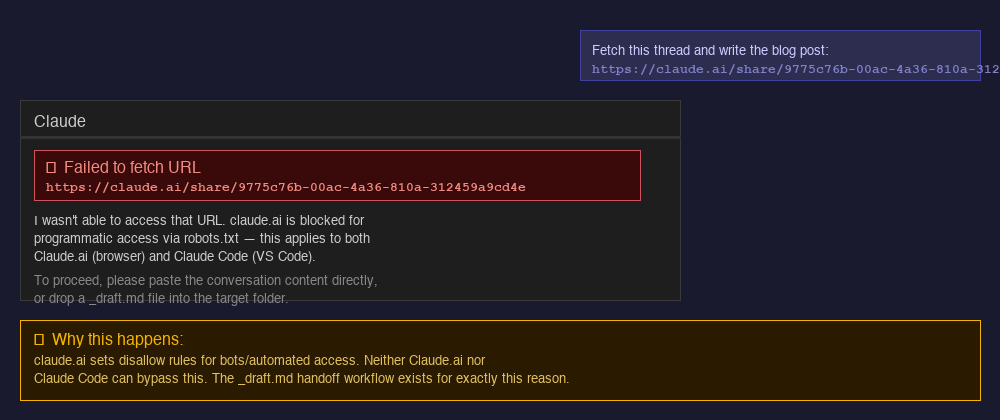
Both Claude.ai and Claude Code are blocked from programmatically accessing claude.ai URLs. Sharing a thread URL and expecting Claude to read it does not work — in either tool.
This killed the core use case. The Project approach was still valid, but the input method needed rethinking.
What I Tried Next — Claude Code + CLAUDE.md
In parallel, I explored using Claude Code in VS Code as the generation tool. Claude Code is an agentic coding assistant that runs inside your editor and has direct filesystem access to your repo.
The key insight: Claude Code can read your actual files. So instead of guessing nav_order, it can scan existing posts in the target folder and pick the next correct number. It can also write the final .md file directly into the right place — no copy-pasting.
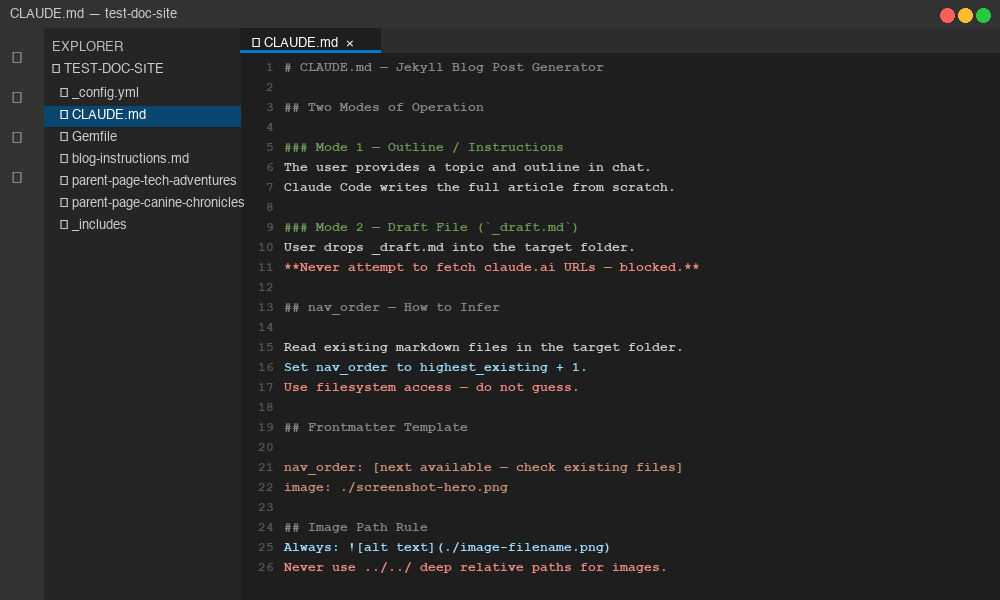
Claude Code reads a CLAUDE.md file from the repo root automatically on every session. This is the Claude Code equivalent of a Project system prompt.
What CLAUDE.md covers
Here’s the key excerpt from my actual CLAUDE.md that governs how Claude Code handles blog generation:
## Two Modes of Operation

### Mode 1 — Outline / Instructions
The user provides a topic, title, and/or bullet-point outline directly in the chat.
Claude Code writes the full article from scratch.

### Mode 2 — Draft File (`_draft.md`)
The user drops a `_draft.md` file into the target folder before starting the session.
Claude Code should never attempt to fetch a claude.ai thread URL directly —
this is blocked and will not work.

When a `_draft.md` exists:
1. Read it fully to understand the content, problem, solution, and structure
2. Use it as the source of truth for the article body
3. Apply all formatting, frontmatter, and style rules from this CLAUDE.md
4. Generate the final article .md file in the same folder
5. Delete _draft.md after the final article is written
And the nav_order rule — this is the bit that makes the whole thing accurate:
## nav_order — How to Infer

Before generating, **read the existing markdown files** in the target section
folder to find the highest current `nav_order` value. Set the new article's
`nav_order` to `highest + 1`.

Use filesystem access (e.g. `ls` or `cat` frontmatter) — do not guess.
And the image path rule that keeps image references consistent across the whole site:
## Image Path Rule
Images live in the **same folder as the article markdown file**.
Always reference them with a relative path:

Never use absolute paths or deep relative paths (../../...) for images.
The remaining problem — thread content
Claude Code also cannot fetch claude.ai URLs. So even with a perfect CLAUDE.md, there was no way to feed it a conversation thread automatically.
Claude Code is great at formatting and file writing, but it cannot read your Claude conversations.
Something else needs to handle the content extraction step.
The Final Workflow — Two Steps, Two Tools
The solution is to split the job across two tools, each doing what it’s actually good at.
Step 1 — Content extraction (in the learning thread itself)
At the end of any Claude conversation worth documenting, paste two things into the chat:
blog-instructions.md— a self-contained instructions file that tells Claude exactly how to format the draft- A generation prompt asking Claude to produce the
_draft.md
Since this happens inside the thread, Claude has full access to the entire conversation history. No URL fetching required. No copy-pasting the thread elsewhere.
Here’s the key structure defined in blog-instructions.md that tells Claude.ai exactly what to produce:
## Draft Output Format

The draft must contain these four parts in order:

### Part 1 — Placement metadata comment (for Claude Code)
<!--
DRAFT METADATA — for Claude Code
Suggested section:      Tech Adventures > Jekyll Blog
Suggested folder:       parent-page-tech-adventures/child-page-1-jekyll-blog/grandchild-page-{N}-{slug}/
Suggested slug:         automating-jekyll-blog-post-generation
Suggested title:        Automating Jekyll Blog Post Generation with Claude
Suggested permalink:    /tech-adventures/jekyll-blog/automating-jekyll-blog-post-generation
Suggested parent:       Jekyll Blog
Suggested grand_parent: Tech Adventures
nav_order:              [TO BE SET BY CLAUDE CODE]
-->

### Part 2 — Suggested frontmatter
---
layout: page
title: [title]
nav_order: [TO BE SET BY CLAUDE CODE]
index: 'yes'
follow: 'yes'
description: [1 sentence SEO-friendly summary]
image: ./screenshot-hero.png
---

### Part 3 — Full article body
### Part 4 — Images required table
And the formatting rules that keep every article consistent — blog-instructions.md documents all of these so Claude.ai produces Just the Docs-compatible output:
## Just the Docs Formatting Rules

### Callouts
{: .note }
Single paragraph tip or gotcha.

{: .warning }
Something that can break or go wrong.

{: .important }
> Critical step — do not skip.
>
> Additional detail here.

### Code blocks — always include a language identifier
```bash
brew install httpd
```
### Images — always use relative path

The output is a `_draft.md` containing the metadata comment, frontmatter, full article body, and an `## Images Required` table — with `nav_order` deliberately left as a placeholder for Claude Code to fill in from the real filesystem.
Step 2 — File generation (Claude Code in VS Code)
Drop the _draft.md into the correct folder in your local repo.
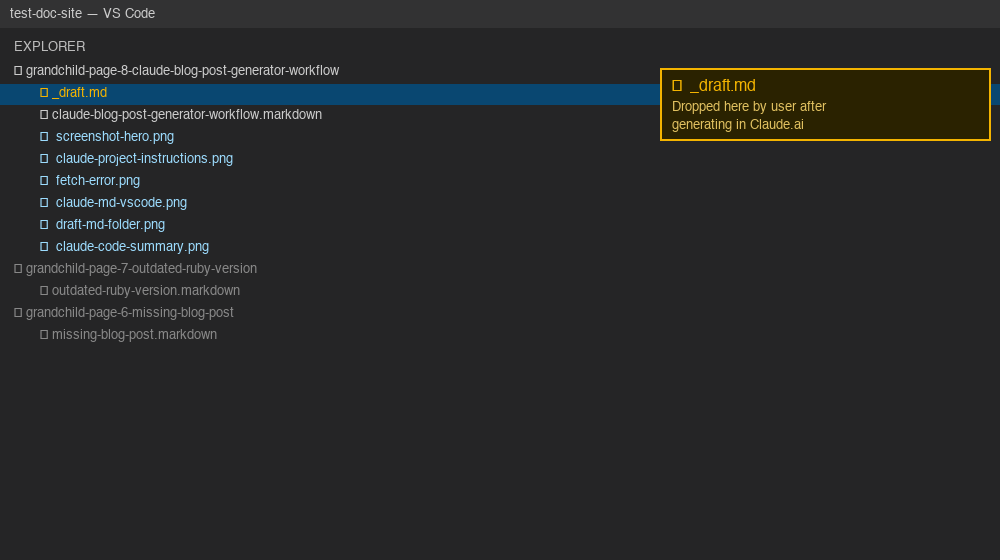
Then tell Claude Code:
“There is a draft at
[path]/_draft.md. Please generate the full Jekyll article from it followingCLAUDE.md.”
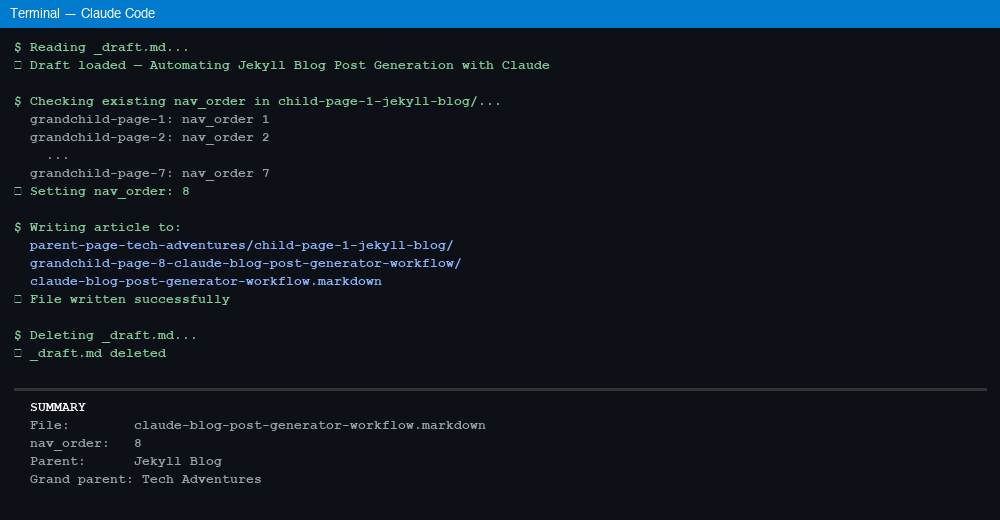
Claude Code will:
- Read
CLAUDE.mdfor all rules - Read
_draft.mdfor content and metadata - Scan existing files in the target folder to determine the correct
nav_order - Confirm the file path with you before writing
- Write the final
.mdarticle - Delete
_draft.md - Print a summary: file path, nav_order used, images needed
Why Not Other Approaches
| Approach | What failed |
|---|---|
| Claude.ai artifact (browser tool) | No persistent context, nav_order always guessed, no file writing |
| Claude.ai Project + thread URL | claude.ai URLs are blocked — fetch always fails |
| Claude Code + thread URL | Same problem — claude.ai URLs blocked |
| Claude Code alone (no draft) | Can write files but has no access to conversation content |
| Claude.ai Project alone | Good for instructions, but no filesystem access for nav_order |
The reason none of the single-tool approaches worked is that the problem has two distinct parts: reading a conversation (Claude.ai’s strength) and writing to a filesystem with real context (Claude Code’s strength). No single tool does both well.
Files in This Workflow
Three files make this system work:
blog-instructions.md (stored locally, not in repo) The self-contained instructions you paste into any thread before generating a draft. Covers blog structure, formatting rules, output format, and writing style. This is what teaches Claude.ai exactly what a _draft.md should look like.
CLAUDE.md (repo root — test-doc-site/CLAUDE.md) Read automatically by Claude Code on every session. Covers folder conventions, frontmatter template, nav_order inference, Just the Docs formatting, writing style, and the pre-save checklist. This is what governs the final article output.
_draft.md (temporary, created per article) The handoff file between Claude.ai and Claude Code. Created by Claude.ai at the end of a thread, dropped into the target folder, consumed and deleted by Claude Code.
The Generation Prompt
When you’re ready to document a thread, paste blog-instructions.md into the conversation and follow it with:
“Based on everything in this thread, please generate a
_draft.mdfollowing the instructions above. Document the learnings step-by-step so a layman can follow along and understand the nuances of the implementation. Include what didn’t work and why, so the reader understands the reasoning behind the final approach.”
Conclusion
What started as “can I automate my blog posts” turned into a proper investigation of what Claude.ai and Claude Code can and can’t actually do. The short version:
- Claude.ai is great at reading and writing content, but can’t touch your filesystem or fetch other Claude conversations
- Claude Code is great at filesystem operations and following structured rules, but can’t read your Claude conversations
- The two-step workflow plays to both strengths — Claude.ai handles content, Claude Code handles structure and file placement
The blog-instructions.md and CLAUDE.md files are the real glue here. They encode all the rules once, so neither tool has to be re-taught each session. You focus on having good learning conversations — the tooling handles turning them into posts.
Until next time, peace and love!
Images Required
| Filename | What to capture |
|---|---|
screenshot-hero.png | The Claude.ai artifact generator UI showing the two-mode interface |
claude-project-instructions.png | The Claude.ai Project instructions settings screen |
fetch-error.png | The failed fetch error message when trying to access a claude.ai share URL |
claude-md-vscode.png | The CLAUDE.md file open in VS Code showing the repo root placement |
draft-md-folder.png | The target folder in VS Code with _draft.md dropped in alongside existing articles |
claude-code-summary.png | Claude Code’s output summary after generating the final article |